

 0
0
 0
0
Why Is My Omegle Camera Not Working?
Omegle camera problems can stem from various sources including browser permissions, hardware conflicts, outdated drivers, or network issues. The good news is that most camera errors have straightforward solutions. By working through these eight methods systematically, you’ll identify the root cause and resolve the issue in most cases.
Before trying any fix, it’s helpful to understand whether the problem originates from your device, browser, or Omegle’s servers. Testing your camera on other video chat platforms can quickly determine if the issue is specific to Omegle or a broader hardware problem.
Method 1: Check Browser Camera Permissions
The most common cause of Omegle camera failures is blocked camera permissions in your web browser. Modern browsers require explicit permission before allowing websites to access your webcam.
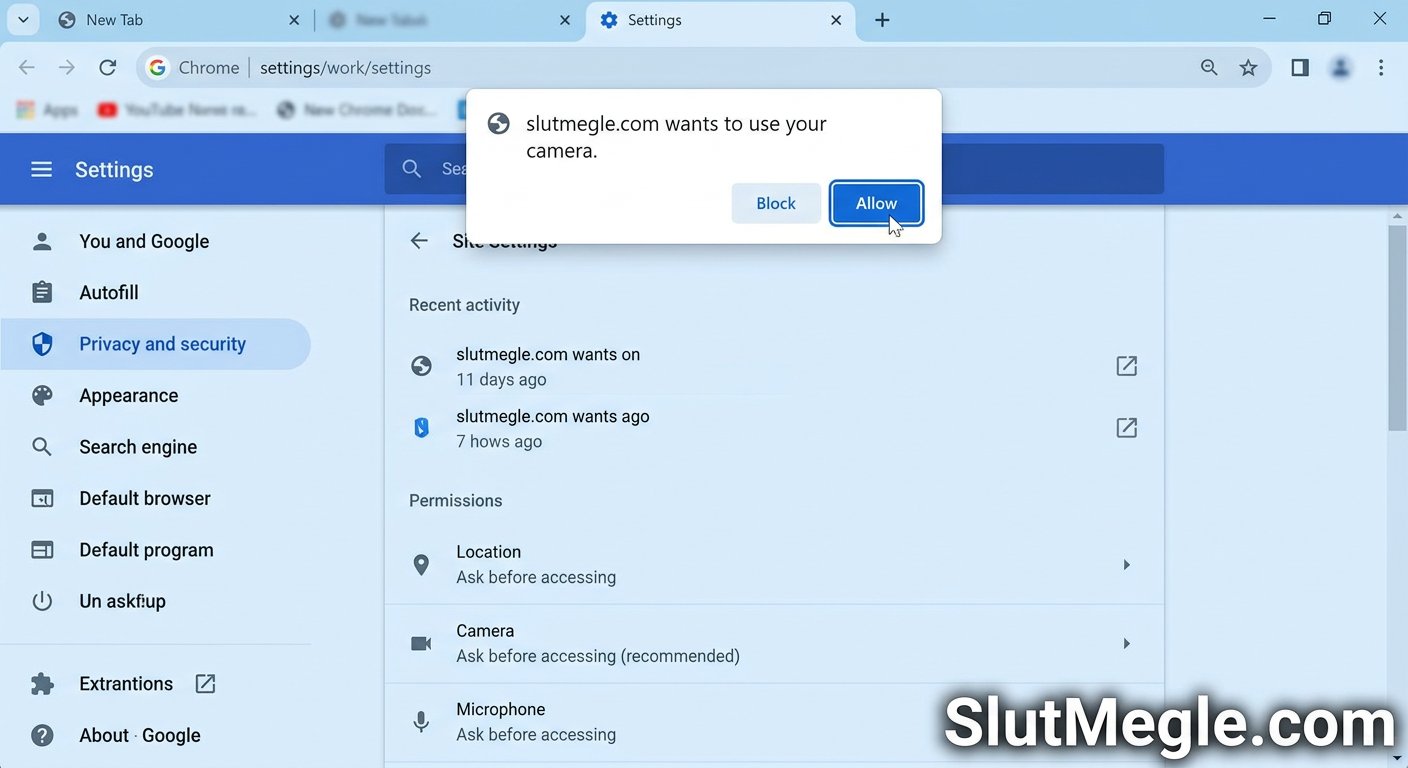
For Google Chrome:
- Click the lock icon or puzzle piece icon in the address bar
- Navigate to Site settings
- Find Camera and set it to Allow
- Refresh the Omegle page and try again
For Mozilla Firefox:
- Click the padlock icon in the address bar
- Click Connection secure
- Clear cookies and site data, then refresh
- Re-enable camera access when prompted
For Microsoft Edge:
- Go to Settings > Site permissions
- Find Camera and ensure Omegle is allowed
- Check that global camera toggle is turned on
If you’re using Safari, you’ll find camera permissions under Safari > Preferences > Websites > Camera. For detailed browser-specific guidance, Mozilla provides camera and microphone permission management tutorials for Firefox and other browsers.
Method 2: Close Conflicting Applications
Your webcam can only be accessed by one application at a time. If another program is currently using your camera, Omegle won’t be able to access it.
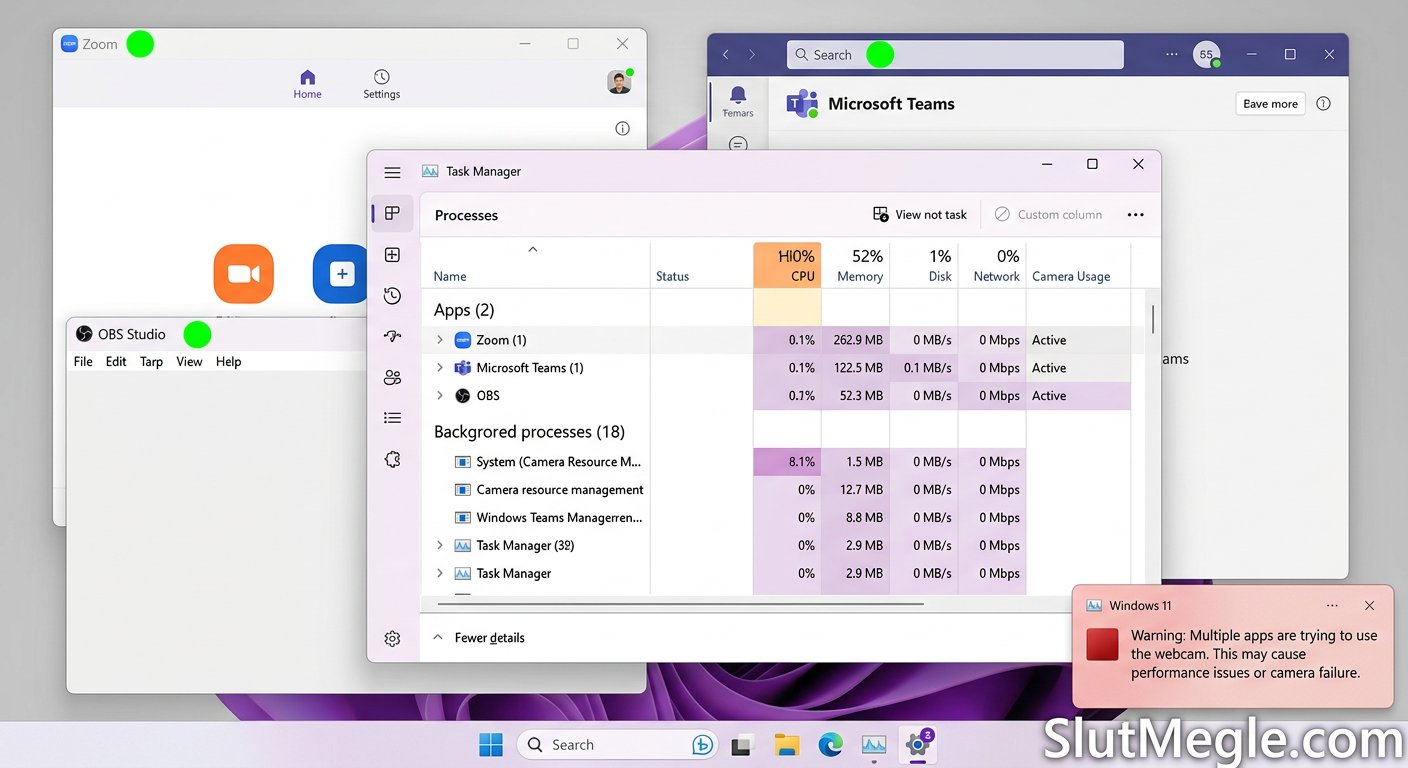
Check for applications that might be using your camera:
- Video conferencing apps like Zoom, Skype, or Microsoft Teams
- Built-in camera apps on your operating system
- Recording software or streaming applications
- Any browser tab from previous video calls
On Windows, open Task Manager (Ctrl+Shift+Esc) and check the Processes tab for any applications that might be accessing your camera. On Mac, look in Activity Monitor for similar processes.
Close any conflicting applications and refresh the Omegle page. Your camera should now be available for use. For additional webcam troubleshooting steps, Microsoft provides official Windows camera troubleshooting guidance that covers application conflicts and camera access issues.
Method 3: Clear Browser Cache and Cookies
Cached data and stored cookies can sometimes interfere with Omegle’s camera functionality. Clearing your browser’s cache and cookies often resolves permission and loading issues.
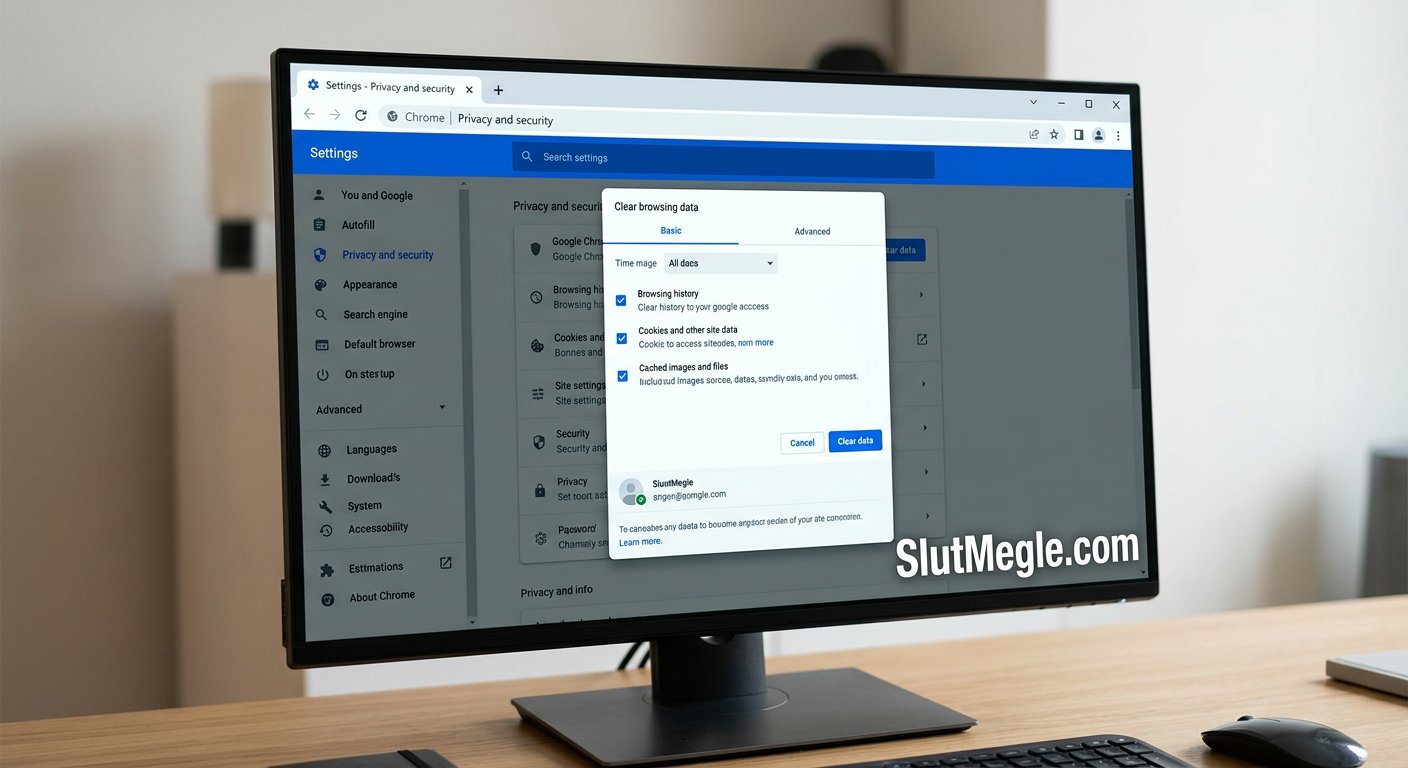
In Chrome, press Ctrl+Shift+Delete (Cmd+Shift+Delete on Mac), select All time for the time range, check Cache and Cookies, then click Clear data. For Firefox, navigate to Settings > Privacy & Security > Clear Data.
After clearing the cache, restart your browser entirely before returning to Omegle. This ensures all old data is removed and the browser loads fresh settings for the camera access request.
Method 4: Update or Reinstall Camera Drivers
Outdated or corrupted webcam drivers frequently cause camera malfunctions across all applications, not just Omegle. Updating your camera drivers can resolve recognition and functionality issues.
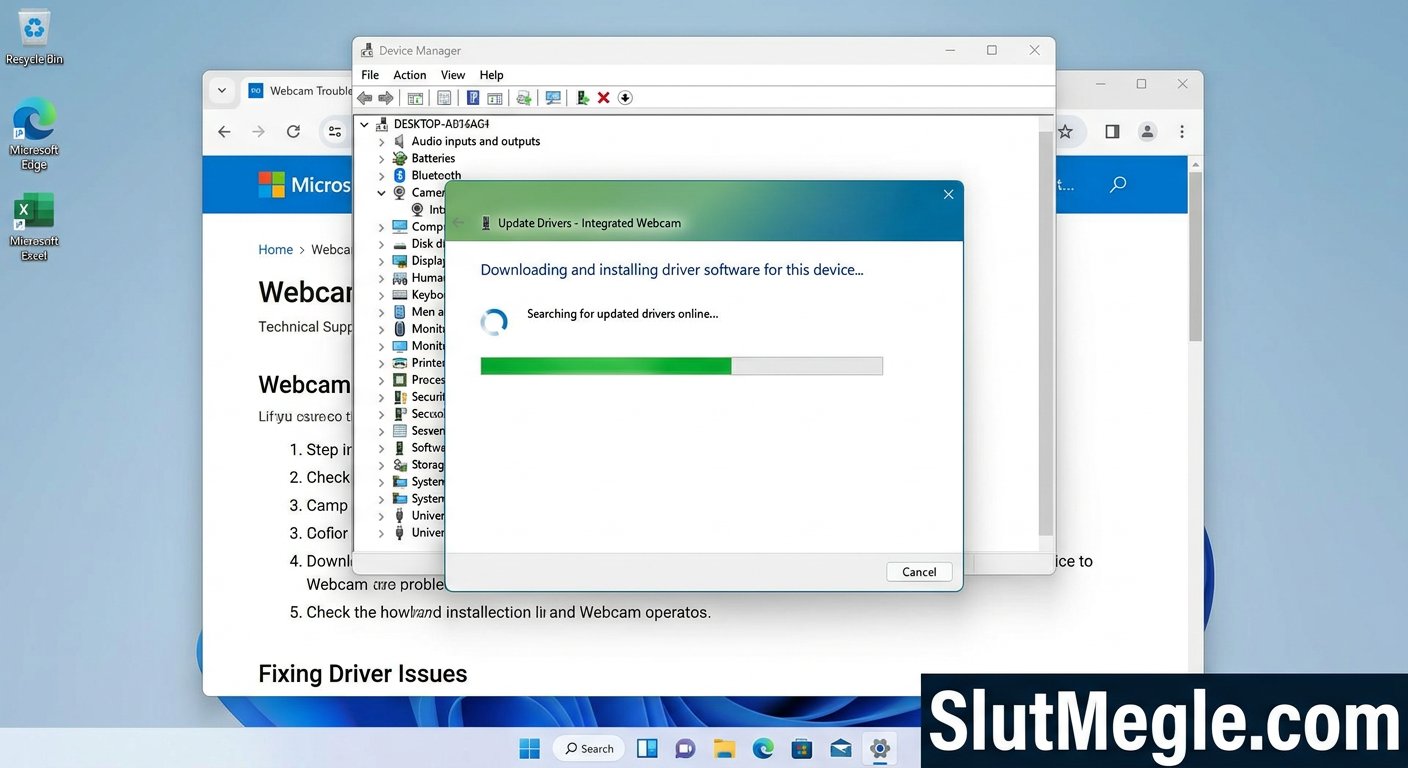
On Windows:
- Open Device Manager by right-clicking the Start button
- Expand the Cameras or Imaging devices section
- Right-click your webcam and select Update driver
- Choose Search automatically for updated driver software
- Restart your computer after the update completes
If updating doesn’t work, try uninstalling the driver entirely, then restart your computer. Windows will automatically reinstall the correct driver on the next boot.
On Mac:
- Go to System Preferences > Software Update
- Install any available updates
- If problems persist, reset the SMC (System Management Controller) according to your Mac model
For external webcams, visit the manufacturer’s website to download the latest drivers for your specific model.
Method 5: Try a Different Browser or Incognito Mode
Browser-specific issues can prevent Omegle camera from working properly. Testing with a different browser quickly identifies whether the problem is browser-related.
If you normally use Chrome, try Firefox, Edge, or Brave. Each browser handles camera permissions differently, and one may work when another fails.
Incognito or private browsing mode is particularly useful because it loads without extensions, which can sometimes interfere with camera access. Most browsers open private windows with Ctrl+Shift+N (Cmd+Shift+N on Mac).
If the camera works in a different browser or incognito mode, the issue lies with your primary browser’s settings or extensions. Consider disabling extensions one by one to identify the culprit.
Method 6: Check Omegle Server Status
Sometimes the problem isn’t on your end at all. Omegle servers experience maintenance, overload, or technical issues that can prevent camera connections.
Check Omegle’s official social media accounts for announcements about server problems. Twitter and Reddit communities often have user reports about outages faster than official channels.
If servers are down, you’ll need to wait for Omegle to resolve the issue. Server-side problems typically resolve within hours, though major outages might take longer.
You can test if Omegle is accessible at all by visiting the homepage and seeing if the interface loads properly. If the site itself won’t load or shows error messages, the issue is almost certainly server-side rather than with your camera.
Method 7: Test Your Camera on Other Platforms
Testing your camera on alternative video chat websites helps determine whether the issue is specific to Omegle or indicates a broader hardware problem.
Websites like WebRTC Test, Camera Test, or your browser’s built-in camera settings page can verify that your webcam is functioning correctly.
If your camera works on other platforms:
- The issue is specifically with Omegle’s configuration
- Try clearing cookies specifically for omegle.com
- Check if you’re using any VPN that might be interfering
- Disable browser extensions that might affect video streams
If your camera fails everywhere:
- This indicates a hardware or driver problem
- Follow Method 4 to update camera drivers
- Try connecting an external webcam if available
- Check if your camera is physically damaged or disconnected
Method 8: Update Your Operating System
Operating system updates include important fixes for hardware compatibility and camera functionality. Running outdated OS versions can cause camera recognition and permission issues.
On Windows 10 or 11, go to Settings > Windows Update and install any available updates. On macOS, use System Preferences > Software Update to check for updates.
After updating your operating system, restart your computer completely and try Omegle again. The update may have patched compatibility issues between your camera and browser.
For the best Omegle experience, ensure your operating system is fully updated, your browser is current, and you have no pending restarts pending.
Preventing Future Camera Problems
Once you’ve resolved your Omegle camera issues, a few preventive measures can help avoid future frustrations. Protecting your privacy while video chatting is equally important – we recommend our comprehensive webcam privacy guide with additional tips for staying secure during video calls.
Keep your browser updated to the latest version, as updates frequently include camera API improvements. Regularly restart your computer to clear memory and reset background processes that might be using your camera.
Consider bookmarking this guide so you can quickly reference these solutions if camera problems recur. Most issues fall into the permission or driver categories, and resolving them typically takes less than ten minutes.
Conclusion
Camera not working on Omegle is a common issue with many potential causes. By working through these eight proven methods in order, you’ll identify and fix the problem in most cases. Start with browser permissions and conflicting apps, then move to cache clearing and driver updates.
For comprehensive Omegle protection and privacy setup, check out our Omegle VPN setup guide to enhance your security while video chatting. Staying safe online includes both technical troubleshooting and proper privacy tools.
Remember that patience is key when troubleshooting camera issues. Work through each method systematically, and don’t skip steps even if they seem unnecessary. The solution to your specific problem is likely among these eight proven methods.